
DCAD-Inbox: The face scan arrives, is aligned and goes into CAD.
The face scan from the digital-Facebow app arrives in the lab, is aligned to the articulator and goes to exocad or 3Shape in the correct orientation. Free, for macOS and Windows.
Does your practice scan with digital-Facebow?
Then it sent you this page. DCAD-Inbox receives the face scans encrypted via your dentsbay account, aligns the facebow to your articulator and exports to exocad or 3Shape. Free of charge — create an account, download, sign in, then give the practice your invitation code.
macOS 13 (Apple Silicon) and Windows 10/11 · exocad and 3Shape
Four steps, then the facebow sits in the CAD.
- 1
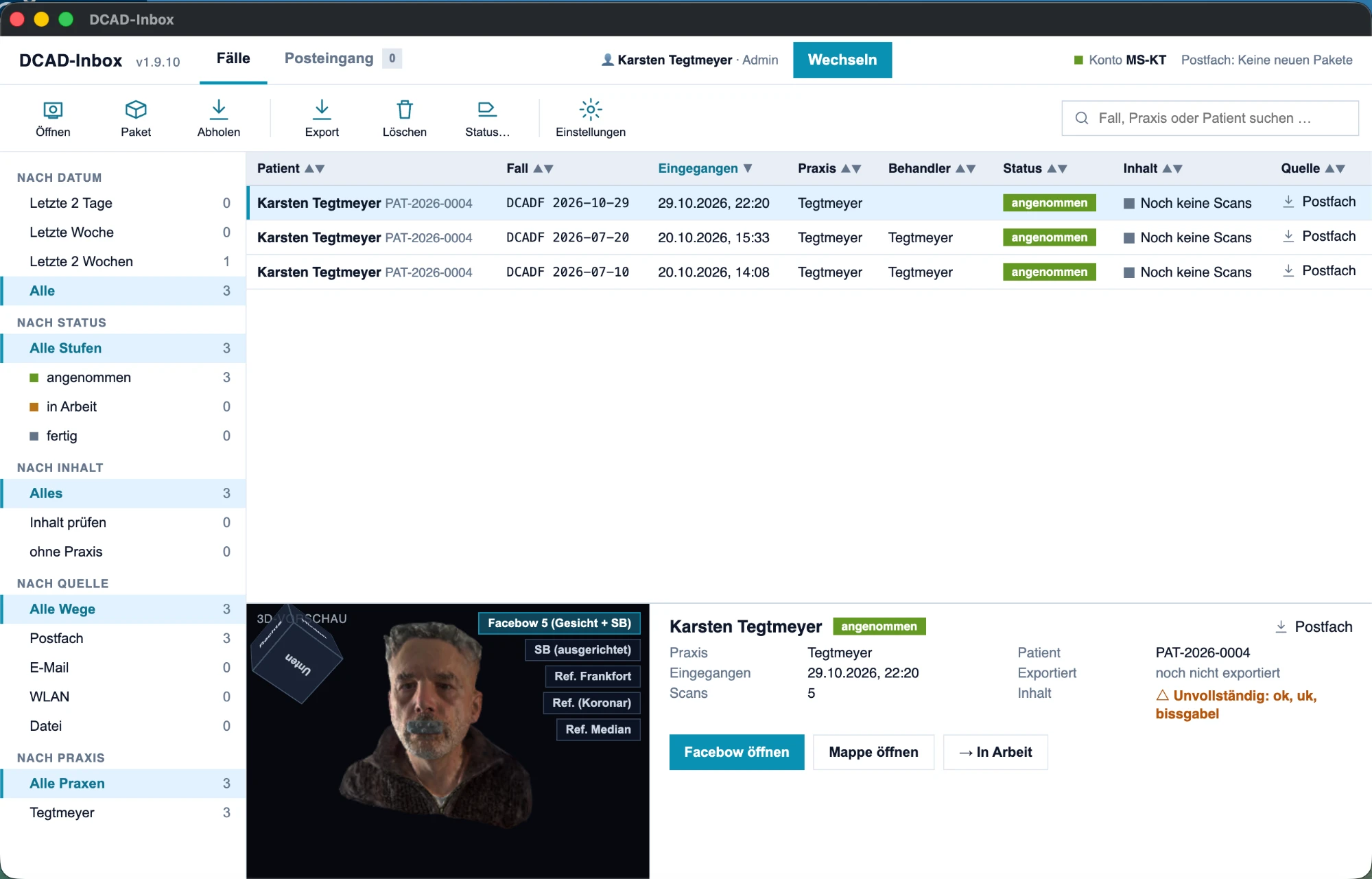
Receive
The case arrives end-to-end encrypted from the digital-Facebow app — only your lab can open it. The inbox lists every case with practice, date and contents.
- 2
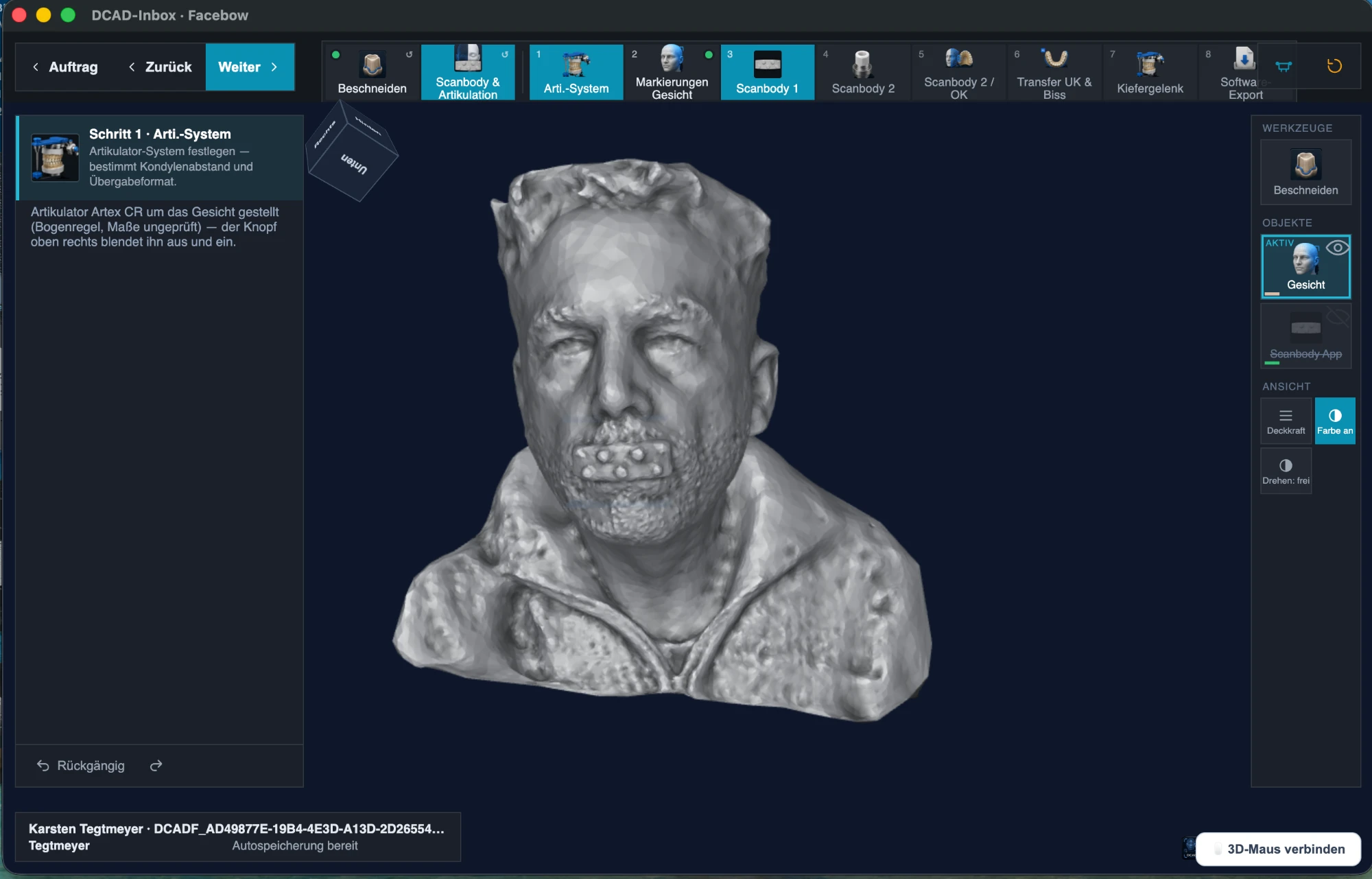
Trim
Whatever the iPhone scanned too much of, you cut away on the computer: scissors and lasso, always a sharp display, undo across all steps.
- 3
Align
Scan body detection and alignment of the facebow to the articulator, with a fit check before export. The default is the articulator from your lab profile, changeable per case.
- 4
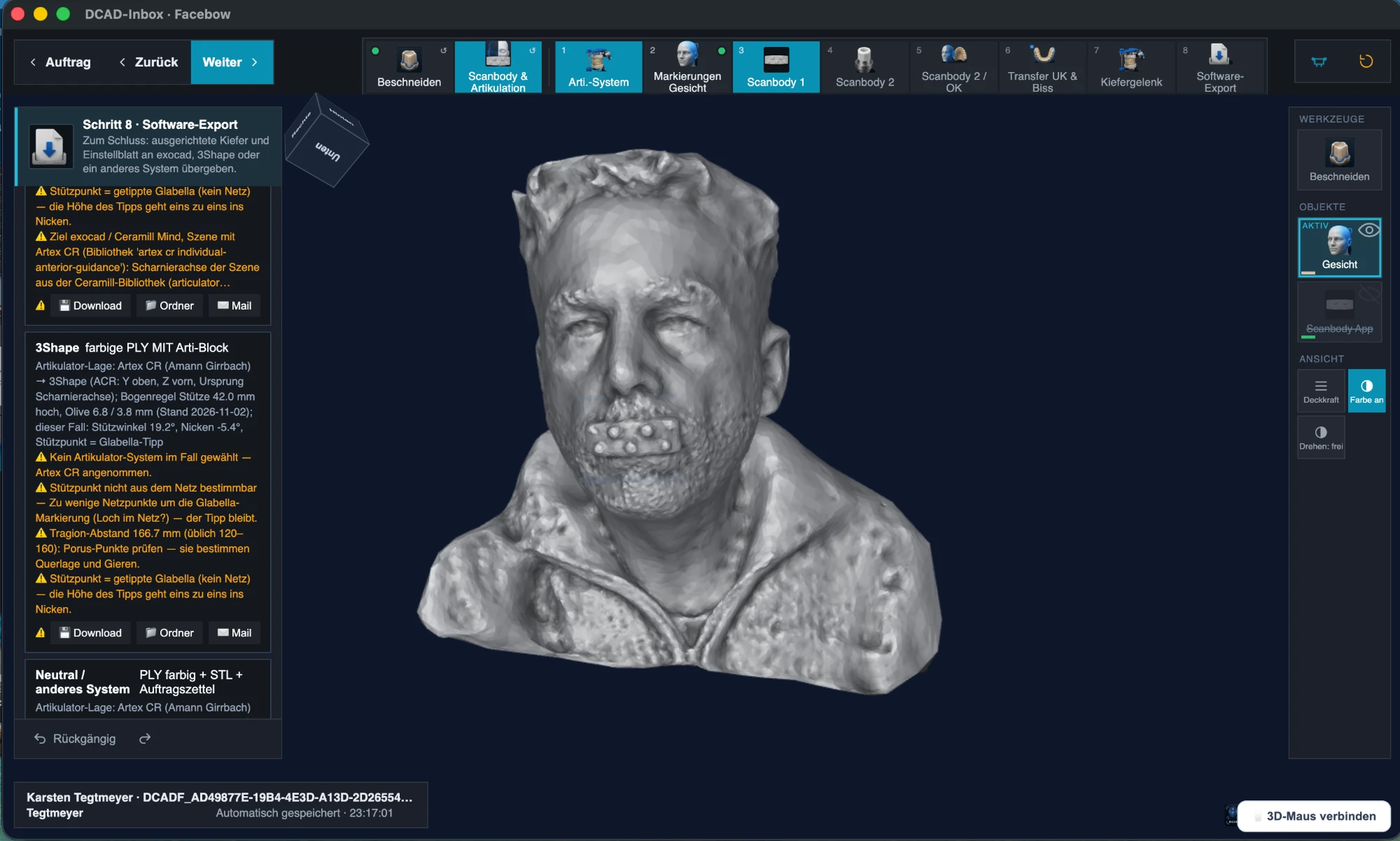
Export
In the correct orientation for exocad or 3Shape, so the face scan sits in the right place in the CAD without rework. Which format is set in your lab profile — changeable per case.
What it looks like.
What your lab needs.
- Mac
- macOS 13 Ventura or newer, Mac with Apple silicon (M1 or newer). Intel Macs are not supported.
- Windows
- Windows 10 or 11, 64-bit.
- Internet
- To sign in with the dentsbay account, to receive cases and for updates. Work on the case runs on your computer.
- Storage
- Cases are stored in a data folder on your computer; you choose the location in the settings, including an external SSD or a NAS.
- CAD
- exocad or 3Shape Dental System for the export; the format is set in your lab profile.
- Computers per lab
- Up to five, all signed in with the same account. DCAD-Inbox also runs next to DCAD-PAT on the same computer.
Account, download, sign in.
- 1
Create an account
Register in the customer portal, choose the role “dental lab”, enter CAD software and articulator.
- 2
Download
In the portal under digital-Facebow → “In the lab”, get the version for macOS or Windows and install it.
- 3
Sign in
Sign in to the program with the e-mail and password of the account — done. Up to five computers per lab.
FAQ about DCAD-Inbox
What does DCAD-Inbox cost?+
Nothing. The program is free; you pay per scan in the practice app digital-Facebow.
Do I need DCAD-PAT for it?+
No. DCAD-Inbox runs on its own. DCAD-PAT, the patient record with workshop, will appear here once it is finished.
On how many computers may I install it?+
On up to five computers per lab, all signed in with the same dentsbay account.
Where are the cases stored?+
In your lab. Transfer from the app is end-to-end encrypted; only your lab can open a case.
Does the practice have to send to a particular lab?+
No. Any lab can install DCAD-Inbox. The practice links its app to your lab via your invitation code; Dentsbay makes the software, it is not the lab.
Questions about setup? dentsbay@gmail.com